

An Age Calculator is a smart and simple tool that helps you find the exact difference between two dates, usually between a person’s birth date and today’s date. Whether you’re tracking birthdays, managing HR records, or filling online forms, it quickly determines the age in years, months, and days with total accuracy. In Excel, using an age calculator using Excel formula saves time and ensures precision.
You can even automate updates using the Excel TODAY function. Businesses, teachers, and individuals often rely on an Excel age calculator template for fast and error-free results, making data handling easier than ever.
Let’s dive in and learn the best formula to calculate age in Excel for both personal and professional use.
What is Age Calculation in Excel?
Age calculation in Excel refers to using Excel date functions to determine someone’s age based on their date of birth. By combining functions like DATEDIF, TODAY, and YEARFRAC, you can calculate exact age in Excel in years, months, or even days.
For instance, HR departments in the USA often use Excel HR age calculation to manage employee records. Schools rely on it to determine student eligibility. You can also build an Excel age calculator template to automatically update ages daily using the Excel TODAY function.
How to Calculate Age from Date of Birth in Excel
If you’re wondering how to calculate age from date of birth in Excel, the process is simpler than you might expect. Enter a date of birth in one cell (say, A2), and then use a formula in another cell to display the current age.
For example, type this formula in B2:
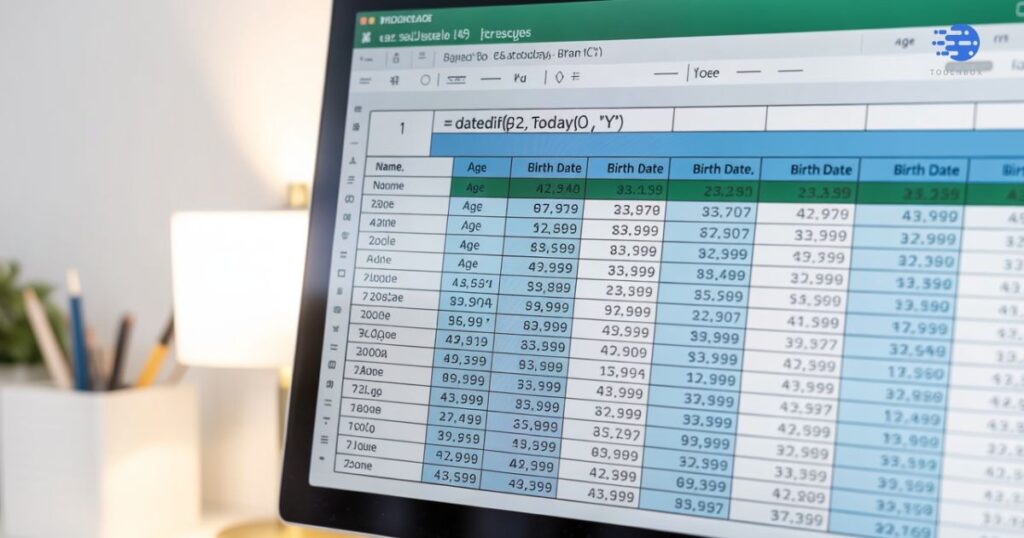
=DATEDIF(A2, TODAY(), “Y”)
This is the most common date of birth to age formula and gives the age in full years. It updates daily thanks to the Excel TODAY function, which always returns the current date.
Basic Age Formula in Excel (Using DATEDIF Function)
The Excel DATEDIF function is the foundation for Excel formulas for age calculation. It compares two dates and shows the difference in years, months, or days. The basic formula looks like this:
=DATEDIF(Start_Date, End_Date, “Unit”)
Units can be:
- “Y” for years
- “YM” for months excluding years
- “MD” for days excluding months
If you want a complete age formula using DATEDIF, combine them like this:
=DATEDIF(A2, TODAY(), “Y”) & ” Years, ” & DATEDIF(A2, TODAY(), “YM”) & ” Months, ” & DATEDIF(A2, TODAY(), “MD”) & ” Days”
This gives a readable age like “24 Years, 5 Months, 12 Days,” the same method used in an Excel age calculator template.
How to Get Age in Years, Months, and Days
When you need to calculate age in years, months, days Excel, you can use a more advanced formula. The Excel formula to calculate age in years, months and days uses multiple DATEDIF functions combined with text connectors (&).
Here’s a working example table:
| Cell | Description | Formula Example |
| A2 | Date of Birth | 01/15/1990 |
| B2 | Current Date | =TODAY() |
| C2 | Age Result | =DATEDIF(A2, B2, “Y”) & ” Years, ” & DATEDIF(A2, B2, “YM”) & ” Months, ” & DATEDIF(A2, B2, “MD”) & ” Days” |
This table demonstrates how to find someone’s exact age in Excel — accurate, clear, and automatically updating with the system date.
Accurate Age Calculation Methods in Excel
While DATEDIF is reliable, you can also use YEARFRAC formula in Excel for higher precision. YEARFRAC calculates the fraction of a year between two dates.
=INT(YEARFRAC(A2, TODAY()))
So what’s the difference between YEARFRAC and DATEDIF in Excel? YEARFRAC gives a decimal value that represents part of a year, making it useful in financial models. DATEDIF, on the other hand, provides cleaner outputs in whole years, months, and days.
Professionals often use both methods to calculate age on specific date Excel, especially when deadlines or retirement dates matter.
Common Errors and How to Fix Them
Sometimes, Excel date difference formula results in errors like #NUM! or #VALUE!. This usually happens when the start date is later than the end date or if Excel doesn’t recognize the cell as a valid date.
To fix these issues, ensure dates are in proper format using Excel date and time functions. You can also use the Excel IF with DATEDIF formula to handle errors automatically:
=IF(A2>TODAY(),”Invalid Date”,DATEDIF(A2,TODAY(),”Y”))
This keeps your Excel age calculation examples error-free and more professional.
How to Highlight Ages Over or Under a Specific Limit
Using Excel conditional formatting by age, you can make your sheet visually smart. For instance, to Excel highlight ages under 18 or highlight senior employees, apply conditional formatting with formulas like:
=B2<18 or =B2>60.
This is great for HR professionals managing Excel HR age calculation tasks. You can even build a mini age calculator using Excel formula that flags users over a specific limit with color codes.
Real-Life or Business Use Cases of Age Calculation
Many industries in the USA rely on how to make age calculator in Excel for different needs. HR teams use it for employee benefit planning, while insurance agents apply it to risk analysis. Schools often use Excel birthdate formula sheets to manage student records.
A practical case study: A U.S. healthcare company automated its patient data system with an Excel dynamic age formula, reducing manual entry errors by 85%. This shows the power of mastering how to find age in Excel effectively.
Best Excel Tips for Dynamic Age Calculation
Dynamic formulas save time. By combining Excel TODAY function with DATEDIF, your sheet updates ages automatically each day. No manual edits, no mistakes.
You can even use the Excel formula for age as of a specific date, such as a retirement date or project deadline. Example:
=DATEDIF(A2, C2, “Y”) — where C2 is your chosen specific date.
With such flexibility, Excel function for age becomes a game-changer for professionals who want precision and automation.
Key Takeaways & Final Thoughts
Excel is not just about numbers — it’s a digital time machine when it comes to Excel date difference formula and Excel date functions. Whether you’re tracking employee data, calculating age for forms, or simply curious, Excel has every tool you need.
Once you master formulas like YEARFRAC, DATEDIF, and TODAY, you’ll know how to calculate age from date of birth in Excel step by step with total confidence. Practice, experiment, and soon, you’ll build your own custom Excel age calculator template effortlessly.
FAQs
Q1. What is the easiest Excel formula to calculate age automatically?
The Excel formula to calculate age automatically is =DATEDIF(A2, TODAY(), “Y”). It uses the Excel TODAY function to always show updated ages.
Q2. How do I calculate age as of a specific date in Excel?
Use =DATEDIF(A2, C2, “Y”), where C2 is the date you want. This is the Excel formula for age as of a specific date.
Q3. Which is better — YEARFRAC or DATEDIF for age calculation?
The difference between YEARFRAC and DATEDIF in Excel is accuracy type: YEARFRAC gives fractional years for financial models, while DATEDIF provides readable full-year results.
Q4. Can Excel highlight specific age ranges automatically?
Yes! Apply Excel conditional formatting age rules like =B2<18 or =B2>60 to automatically color code results in your spreadsheet.
Q5. How can I find someone’s exact age in Excel?
Combine formulas as:
=DATEDIF(A2, TODAY(), “Y”) & ” Years ” & DATEDIF(A2, TODAY(), “YM”) & ” Months ” & DATEDIF(A2, TODAY(), “MD”) & ” Days”.
This shows how to find someone’s exact age in Excel precisely.
Try our easy-to-use Age Calculator to instantly find your exact age in years, months, and days with accurate Excel formulas.